> ## Documentation Index
> Fetch the complete documentation index at: https://docs.ascendapi.com/llms.txt
> Use this file to discover all available pages before exploring further.
# Quickstart
> Get up and running with AscendAPI in under 5 minutes.
## Step 1. Browse & Choose an API
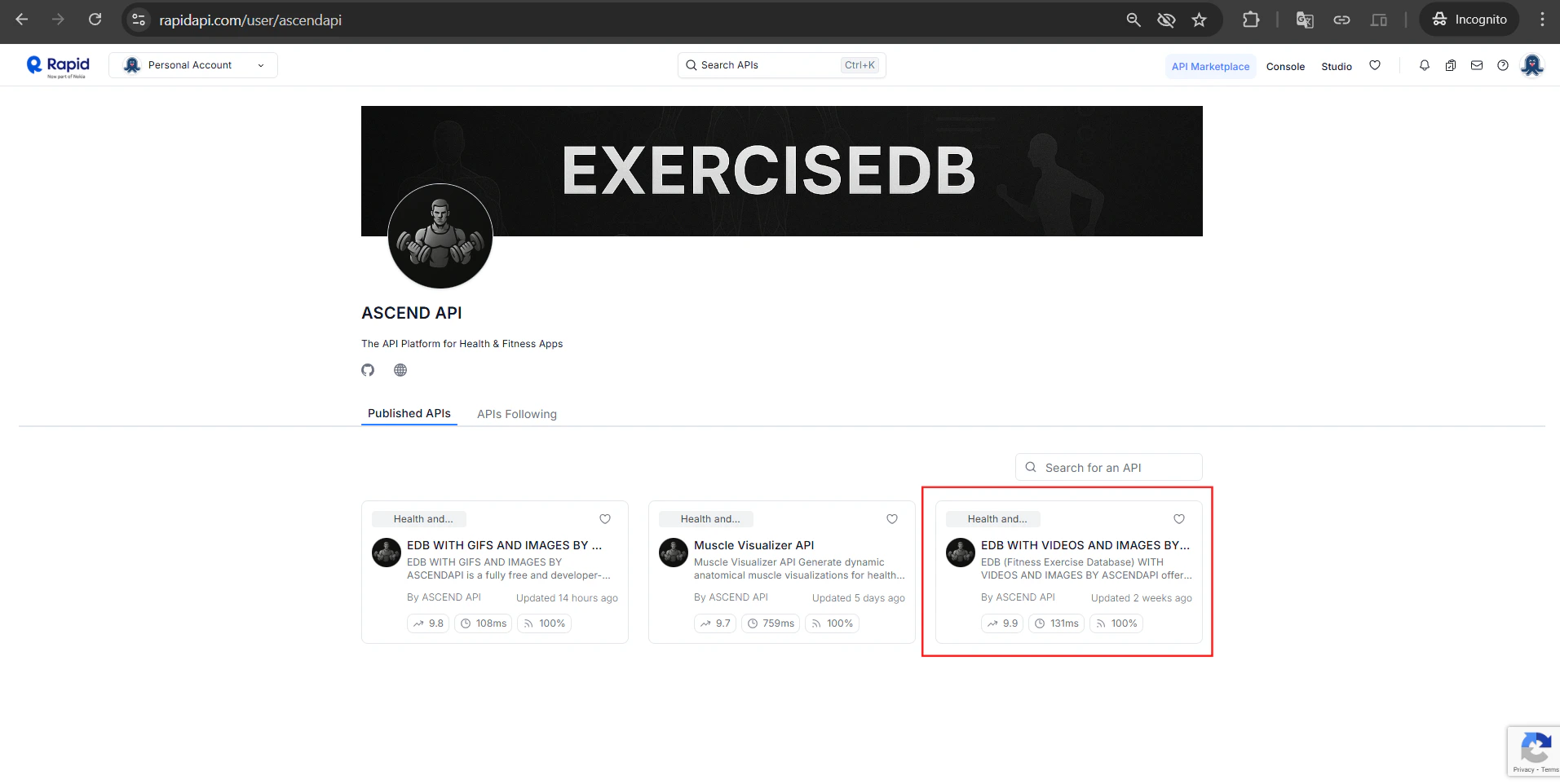
Head to the [AscendAPI profile on RapidAPI](https://rapidapi.com/user/ascendapi) to see all available APIs.
> **Note:** The list of APIs grows over time. Check back for new additions.
For this quickstart, we'll use the [EDB with Videos and Images by AscendAPI](https://rapidapi.com/ascendapi/api/edb-with-videos-and-images-by-ascendapi) API
 ***
## Step 2. Subscribe to the Free Plan
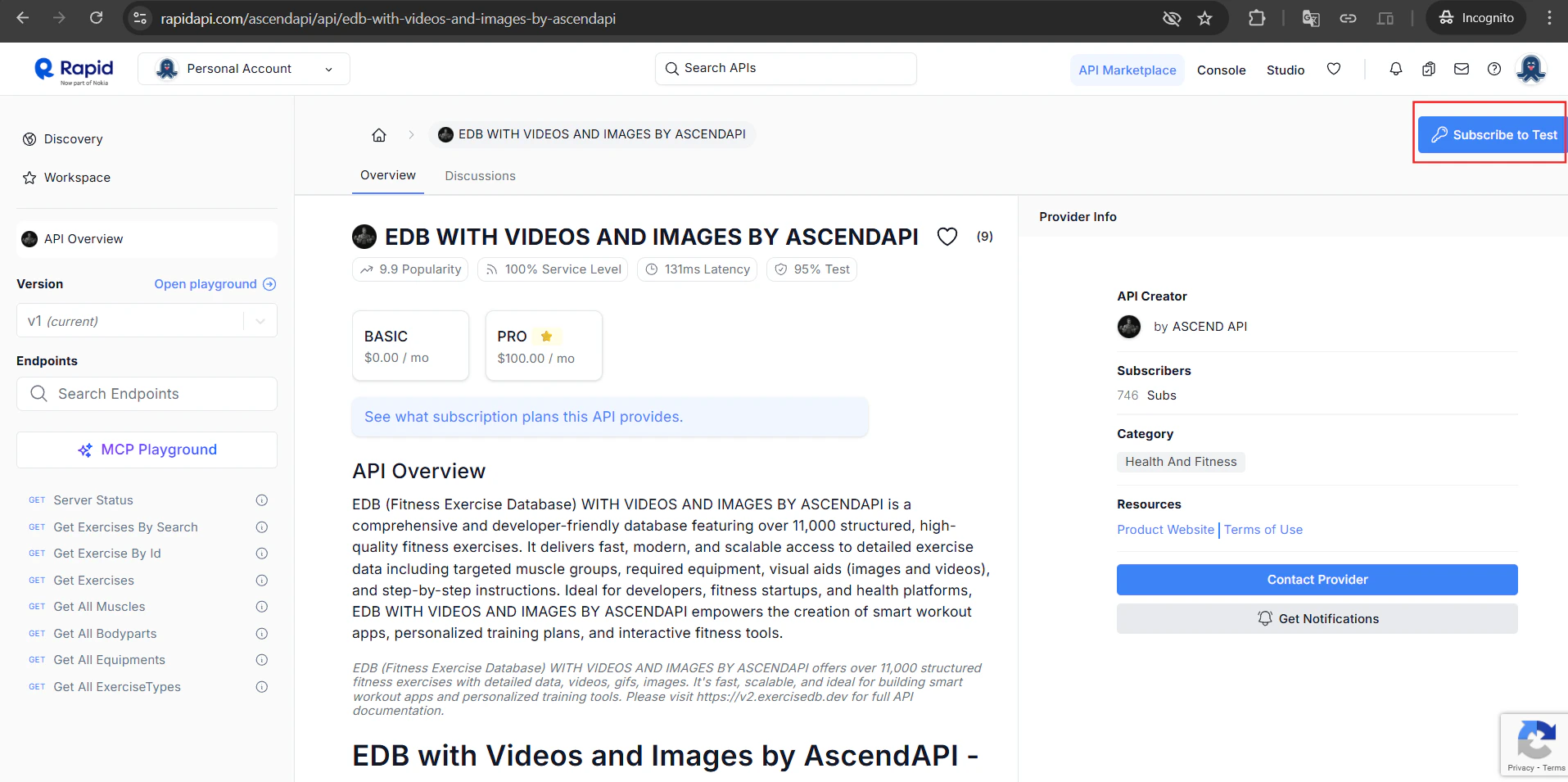
On the API page, click **"Subscribe to Test"** in the top-right corner. You'll be taken to the pricing plans.
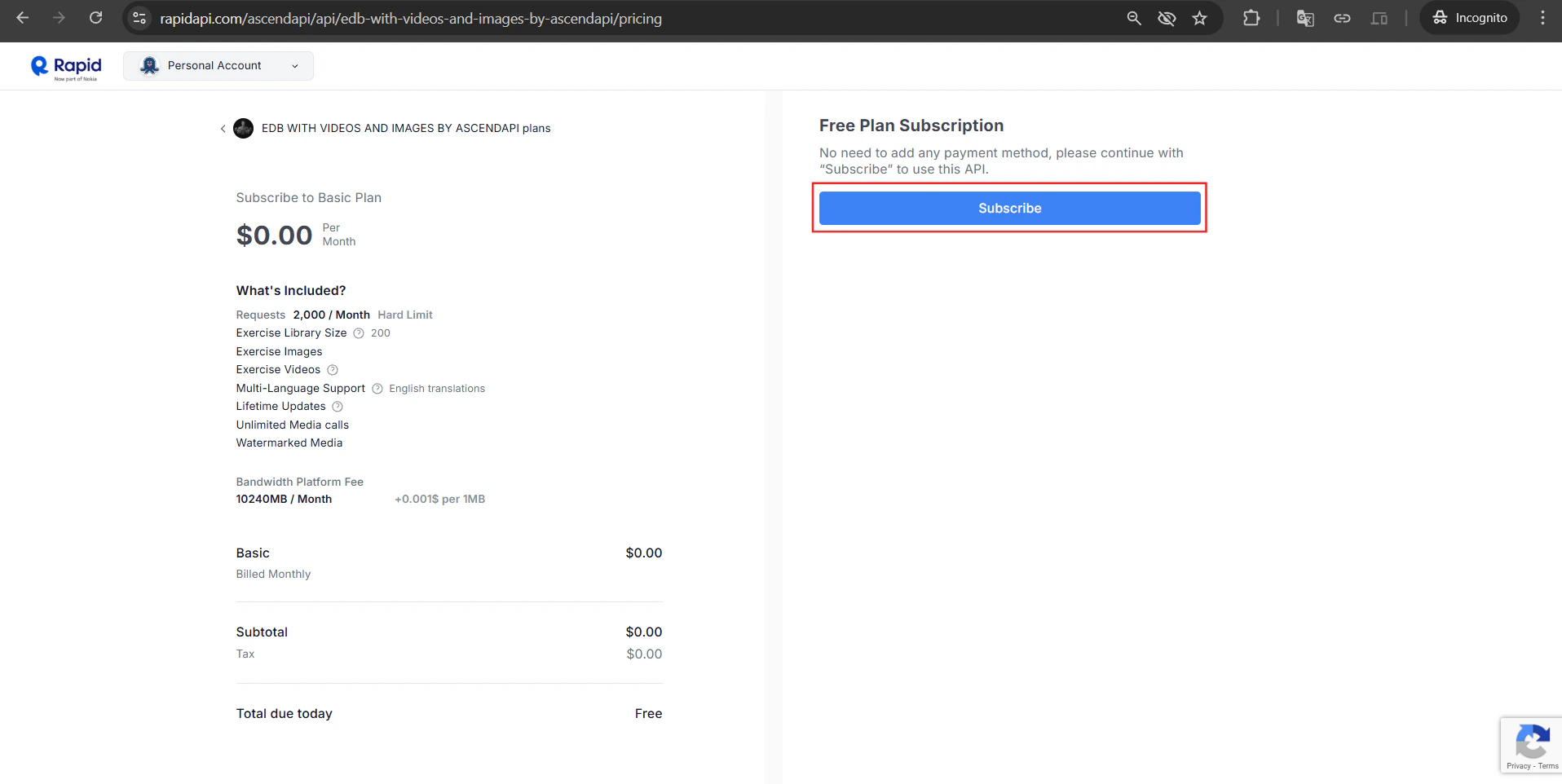
Select the **Basic plan** it's completely free:
* ✅ 2,000 requests / month
* ✅ 200 exercises in library
* ✅ Exercise images & videos
* ✅ No credit card required
Click **Subscribe**.
***
## Step 2. Subscribe to the Free Plan
On the API page, click **"Subscribe to Test"** in the top-right corner. You'll be taken to the pricing plans.
Select the **Basic plan** it's completely free:
* ✅ 2,000 requests / month
* ✅ 200 exercises in library
* ✅ Exercise images & videos
* ✅ No credit card required
Click **Subscribe**.
 ***
## Step 3. Confirm Your Subscription
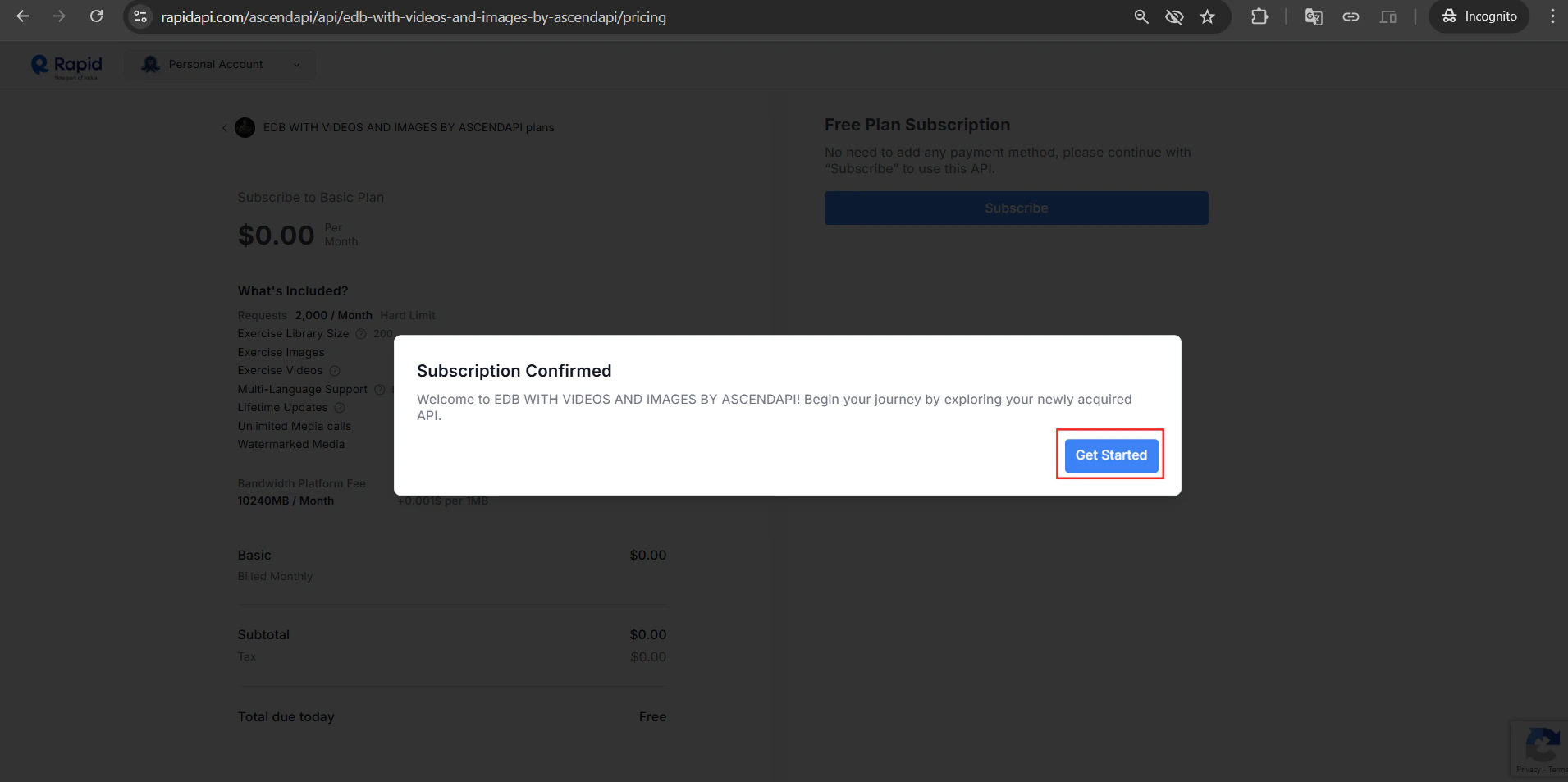
After subscribing, you'll see a **"Subscription Confirmed"** popup. Click **"Get Started"** to jump straight to the API playground.
***
## Step 3. Confirm Your Subscription
After subscribing, you'll see a **"Subscription Confirmed"** popup. Click **"Get Started"** to jump straight to the API playground.
 Alternatively, navigate back to the API page anytime:
[https://rapidapi.com/ascendapi/api/edb-with-videos-and-images-by-ascendapi](https://rapidapi.com/ascendapi/api/edb-with-videos-and-images-by-ascendapi)
***
## Step 4. Get Your API Credentials
In the API playground, click the **"App"** tab. You'll find two critical values:
| Header | Value |
| ----------------- | -------------------------------------------------------- |
| `X-RapidAPI-Key` | Your unique API key (keep this secret!) |
| `X-RapidAPI-Host` | `edb-with-videos-and-images-by-ascendapi.p.rapidapi.com` |
Copy your `X-RapidAPI-Key` — you'll use this in every request.
Alternatively, navigate back to the API page anytime:
[https://rapidapi.com/ascendapi/api/edb-with-videos-and-images-by-ascendapi](https://rapidapi.com/ascendapi/api/edb-with-videos-and-images-by-ascendapi)
***
## Step 4. Get Your API Credentials
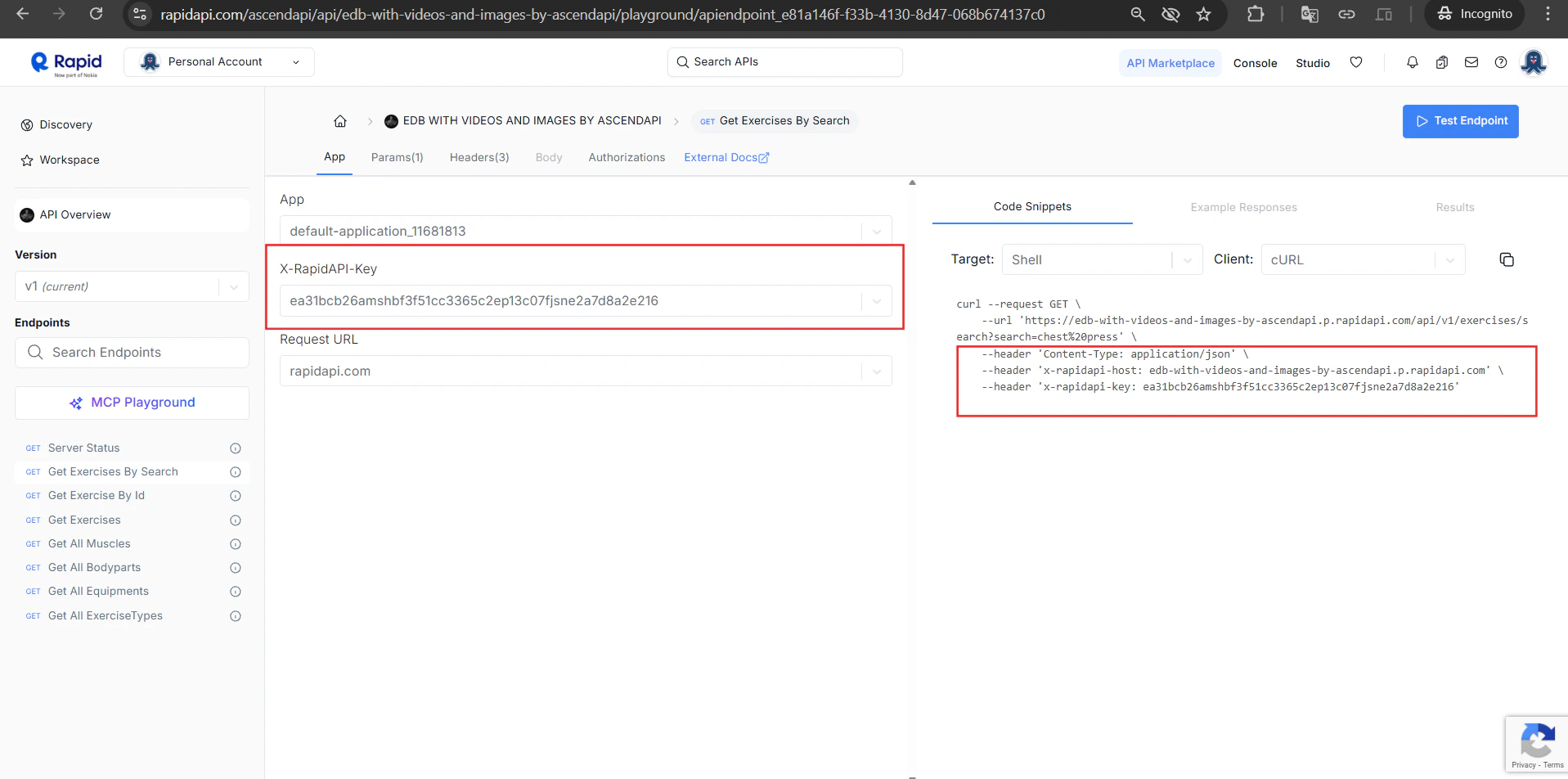
In the API playground, click the **"App"** tab. You'll find two critical values:
| Header | Value |
| ----------------- | -------------------------------------------------------- |
| `X-RapidAPI-Key` | Your unique API key (keep this secret!) |
| `X-RapidAPI-Host` | `edb-with-videos-and-images-by-ascendapi.p.rapidapi.com` |
Copy your `X-RapidAPI-Key` — you'll use this in every request.
 ***
## Step 5. Test an Endpoint
Now select any endpoint from the left sidebar (e.g. **"Get Exercises By Search"**).
1. Click the endpoint in the left panel
2. Go to the **Params** tab and enter a search term (e.g. `chest press`)
3. Click **"Test Endpoint"**
You'll get a `200 OK` response with exercise data including `exerciseId`, `name`, and `imageUrl`.
***
## Step 5. Test an Endpoint
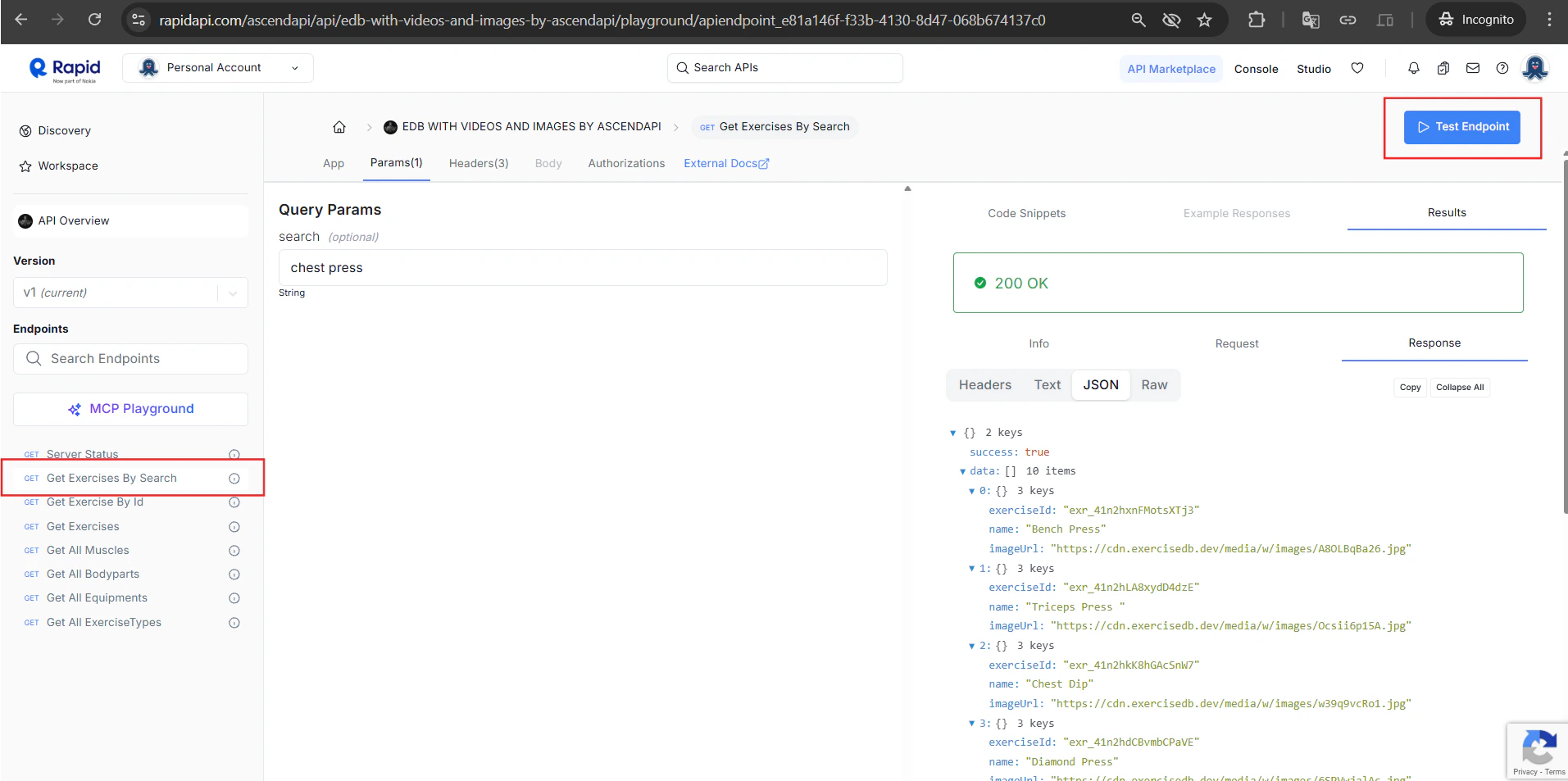
Now select any endpoint from the left sidebar (e.g. **"Get Exercises By Search"**).
1. Click the endpoint in the left panel
2. Go to the **Params** tab and enter a search term (e.g. `chest press`)
3. Click **"Test Endpoint"**
You'll get a `200 OK` response with exercise data including `exerciseId`, `name`, and `imageUrl`.
 ***
## Step 6. Make Your First Request
Use the credentials from Step 4 to call the API from your code.
```bash cURL theme={"system"}
curl --request GET \
--url 'https://edb-with-videos-and-images-by-ascendapi.p.rapidapi.com/api/v1/exercises/search?search=chest%20press' \
--header 'Content-Type: application/json' \
--header 'x-rapidapi-host: edb-with-videos-and-images-by-ascendapi.p.rapidapi.com' \
--header 'x-rapidapi-key: YOUR_RAPIDAPI_KEY'
```
```javascript JavaScript theme={"system"}
const response = await fetch(
"https://edb-with-videos-and-images-by-ascendapi.p.rapidapi.com/api/v1/exercises/search?search=chest%20press",
{
method: "GET",
headers: {
"Content-Type": "application/json",
"x-rapidapi-host": "edb-with-videos-and-images-by-ascendapi.p.rapidapi.com",
"x-rapidapi-key": "YOUR_RAPIDAPI_KEY",
},
}
);
const data = await response.json();
console.log(data);
```
```python Python theme={"system"}
import requests
url = "https://edb-with-videos-and-images-by-ascendapi.p.rapidapi.com/api/v1/exercises/search"
headers = {
"Content-Type": "application/json",
"x-rapidapi-host": "edb-with-videos-and-images-by-ascendapi.p.rapidapi.com",
"x-rapidapi-key": "YOUR_RAPIDAPI_KEY",
}
response = requests.get(url, headers=headers, params={"search": "chest press"})
print(response.json())
```
### Example Response
```json theme={"system"}
{
"success": true,
"data": [
{
"exerciseId": "exr_41n2hxnFMotsXTj3",
"name": "Bench Press",
"imageUrl": "https://cdn.exercisedb.dev/media/w/images/A8OLBqBa26.jpg"
},
{
"exerciseId": "exr_41n2hLA8xydD4dzE",
"name": "Triceps Press",
"imageUrl": "https://cdn.exercisedb.dev/media/w/images/Ocsii6p15A.jpg"
},
]
}
```
***
## What's Next?
Full documentation of every endpoint, parameter, and response shape.
Monitor your usage, track requests, and manage your subscription.
***
## Step 6. Make Your First Request
Use the credentials from Step 4 to call the API from your code.
```bash cURL theme={"system"}
curl --request GET \
--url 'https://edb-with-videos-and-images-by-ascendapi.p.rapidapi.com/api/v1/exercises/search?search=chest%20press' \
--header 'Content-Type: application/json' \
--header 'x-rapidapi-host: edb-with-videos-and-images-by-ascendapi.p.rapidapi.com' \
--header 'x-rapidapi-key: YOUR_RAPIDAPI_KEY'
```
```javascript JavaScript theme={"system"}
const response = await fetch(
"https://edb-with-videos-and-images-by-ascendapi.p.rapidapi.com/api/v1/exercises/search?search=chest%20press",
{
method: "GET",
headers: {
"Content-Type": "application/json",
"x-rapidapi-host": "edb-with-videos-and-images-by-ascendapi.p.rapidapi.com",
"x-rapidapi-key": "YOUR_RAPIDAPI_KEY",
},
}
);
const data = await response.json();
console.log(data);
```
```python Python theme={"system"}
import requests
url = "https://edb-with-videos-and-images-by-ascendapi.p.rapidapi.com/api/v1/exercises/search"
headers = {
"Content-Type": "application/json",
"x-rapidapi-host": "edb-with-videos-and-images-by-ascendapi.p.rapidapi.com",
"x-rapidapi-key": "YOUR_RAPIDAPI_KEY",
}
response = requests.get(url, headers=headers, params={"search": "chest press"})
print(response.json())
```
### Example Response
```json theme={"system"}
{
"success": true,
"data": [
{
"exerciseId": "exr_41n2hxnFMotsXTj3",
"name": "Bench Press",
"imageUrl": "https://cdn.exercisedb.dev/media/w/images/A8OLBqBa26.jpg"
},
{
"exerciseId": "exr_41n2hLA8xydD4dzE",
"name": "Triceps Press",
"imageUrl": "https://cdn.exercisedb.dev/media/w/images/Ocsii6p15A.jpg"
},
]
}
```
***
## What's Next?
Full documentation of every endpoint, parameter, and response shape.
Monitor your usage, track requests, and manage your subscription.