Step 1. Browse & Choose an API
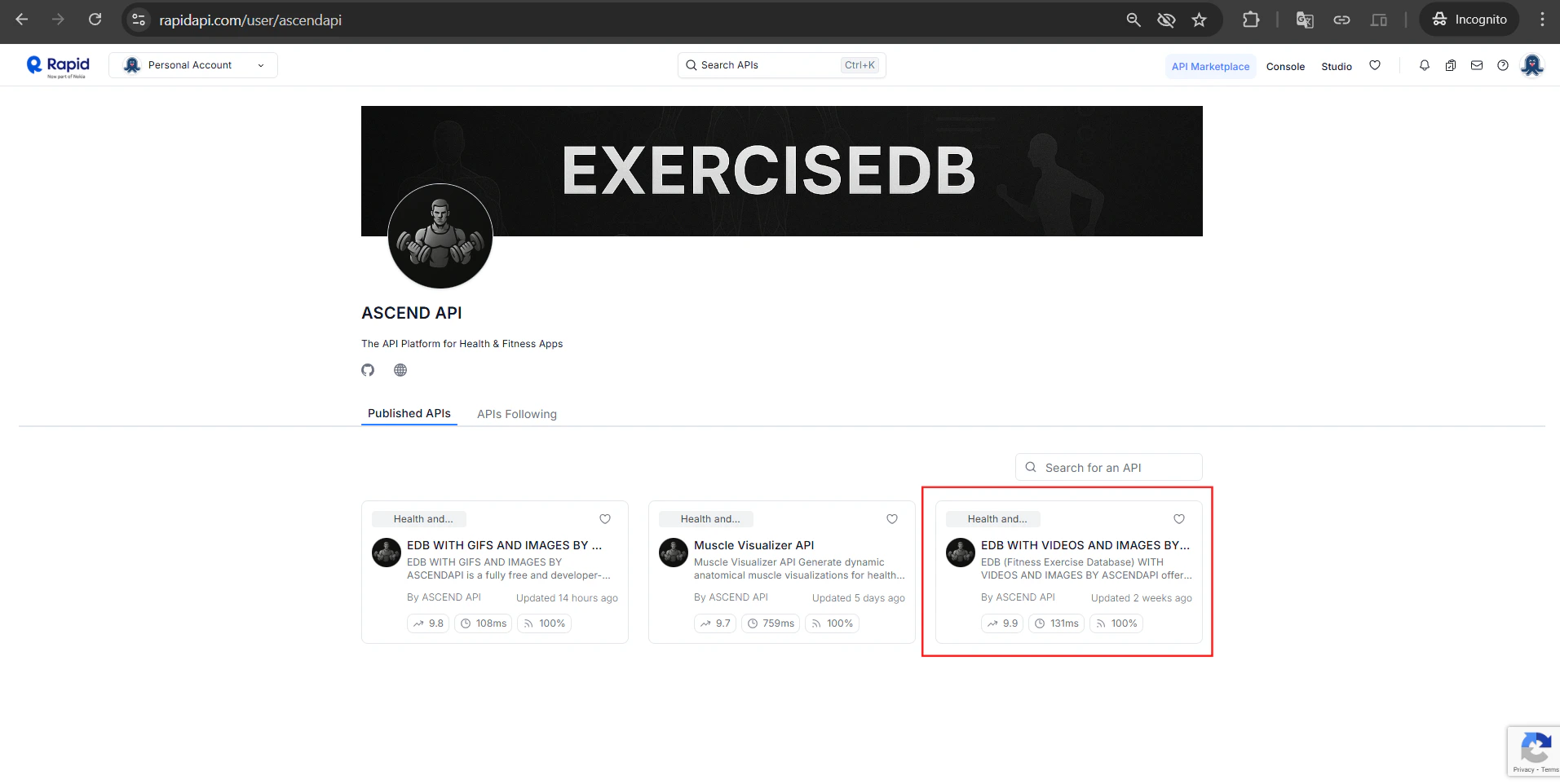
Head to the AscendAPI profile on RapidAPI to see all available APIs.Note: The list of APIs grows over time. Check back for new additions.For this quickstart, we’ll use the EDB with Videos and Images by AscendAPI API
Step 2. Subscribe to the Free Plan
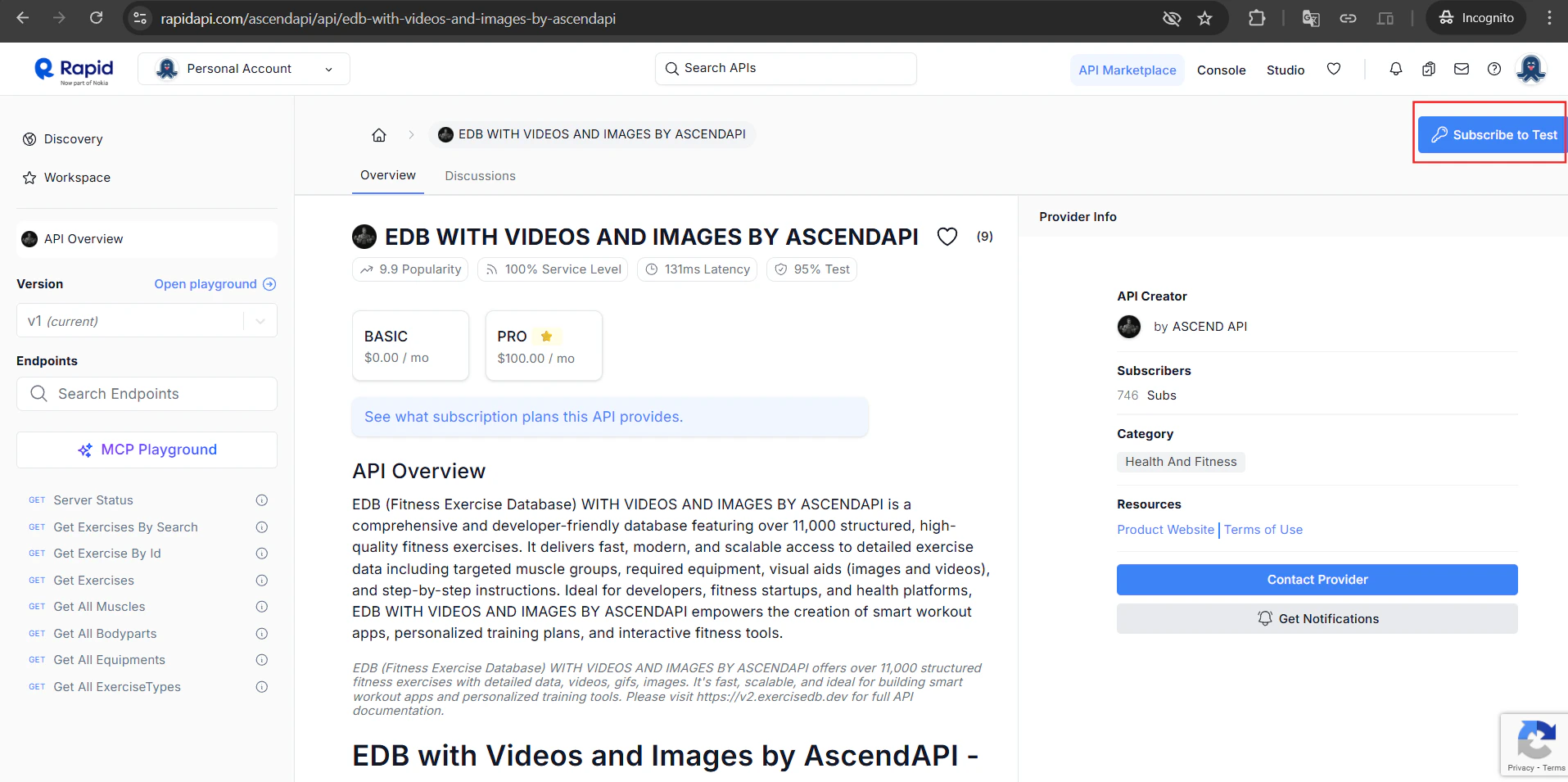
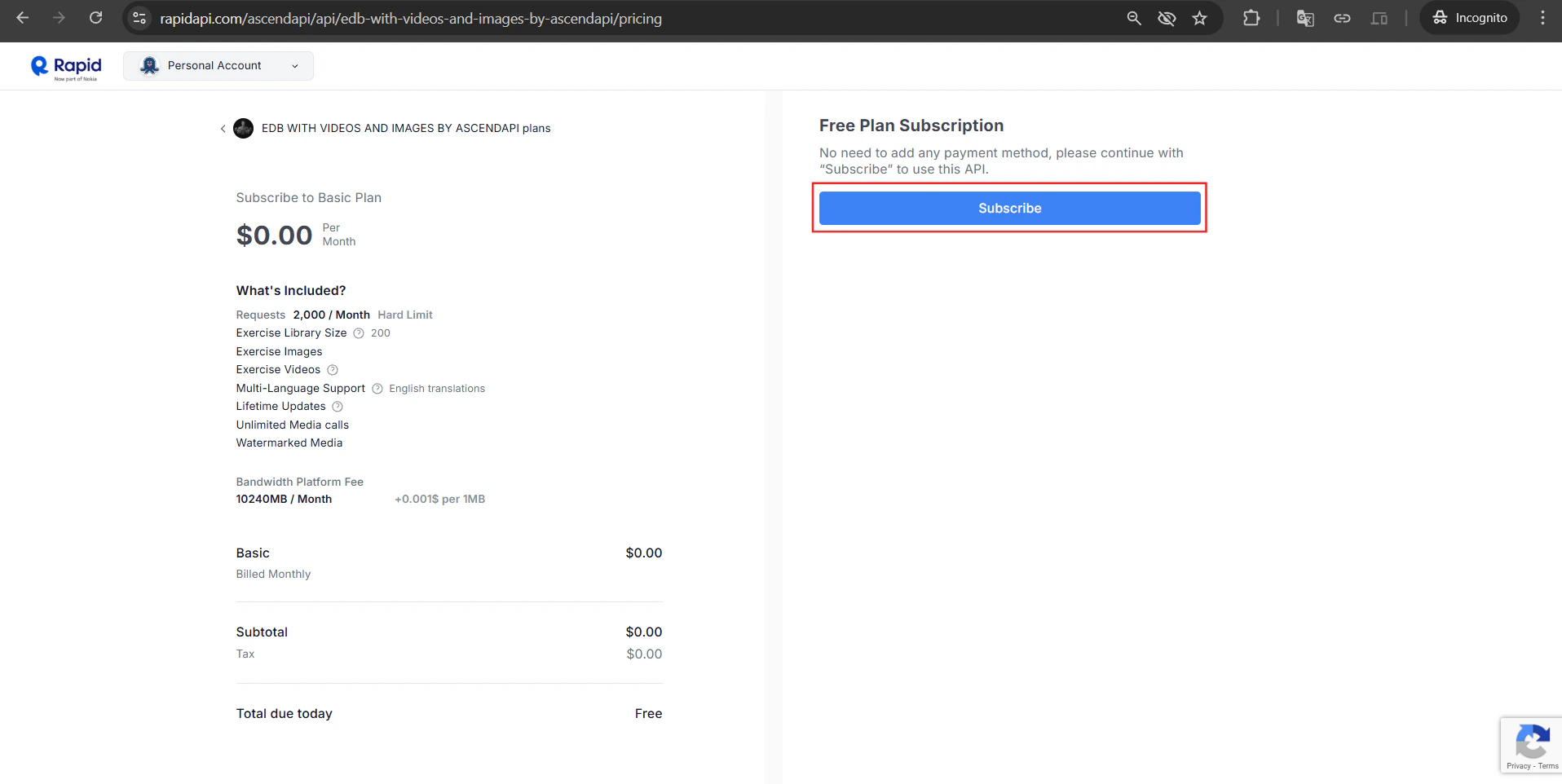
On the API page, click “Subscribe to Test” in the top-right corner. You’ll be taken to the pricing plans. Select the Basic plan it’s completely free:- ✅ 2,000 requests / month
- ✅ 200 exercises in library
- ✅ Exercise images & videos
- ✅ No credit card required
Step 3. Confirm Your Subscription
After subscribing, you’ll see a “Subscription Confirmed” popup. Click “Get Started” to jump straight to the API playground.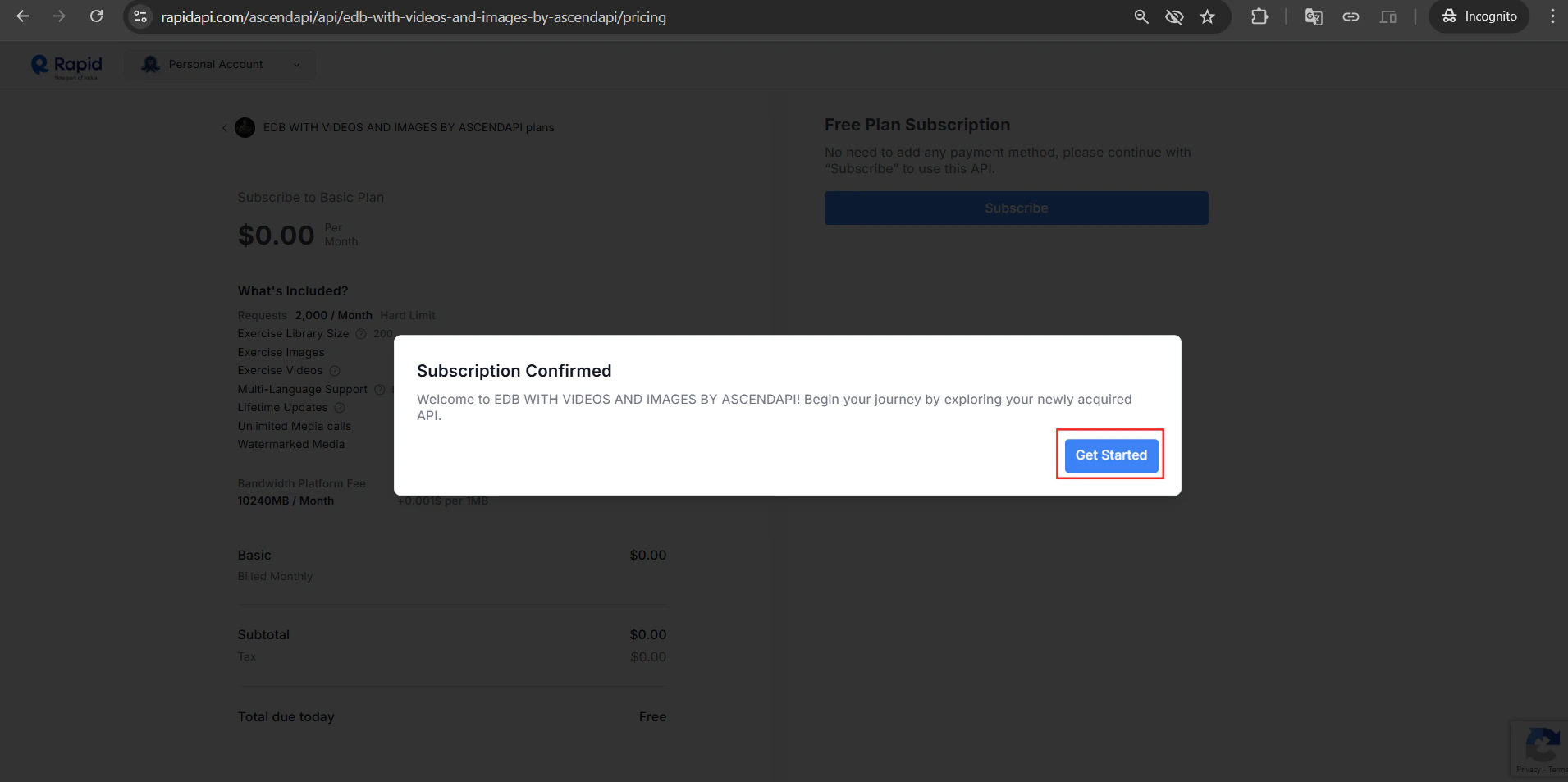
Step 4. Get Your API Credentials
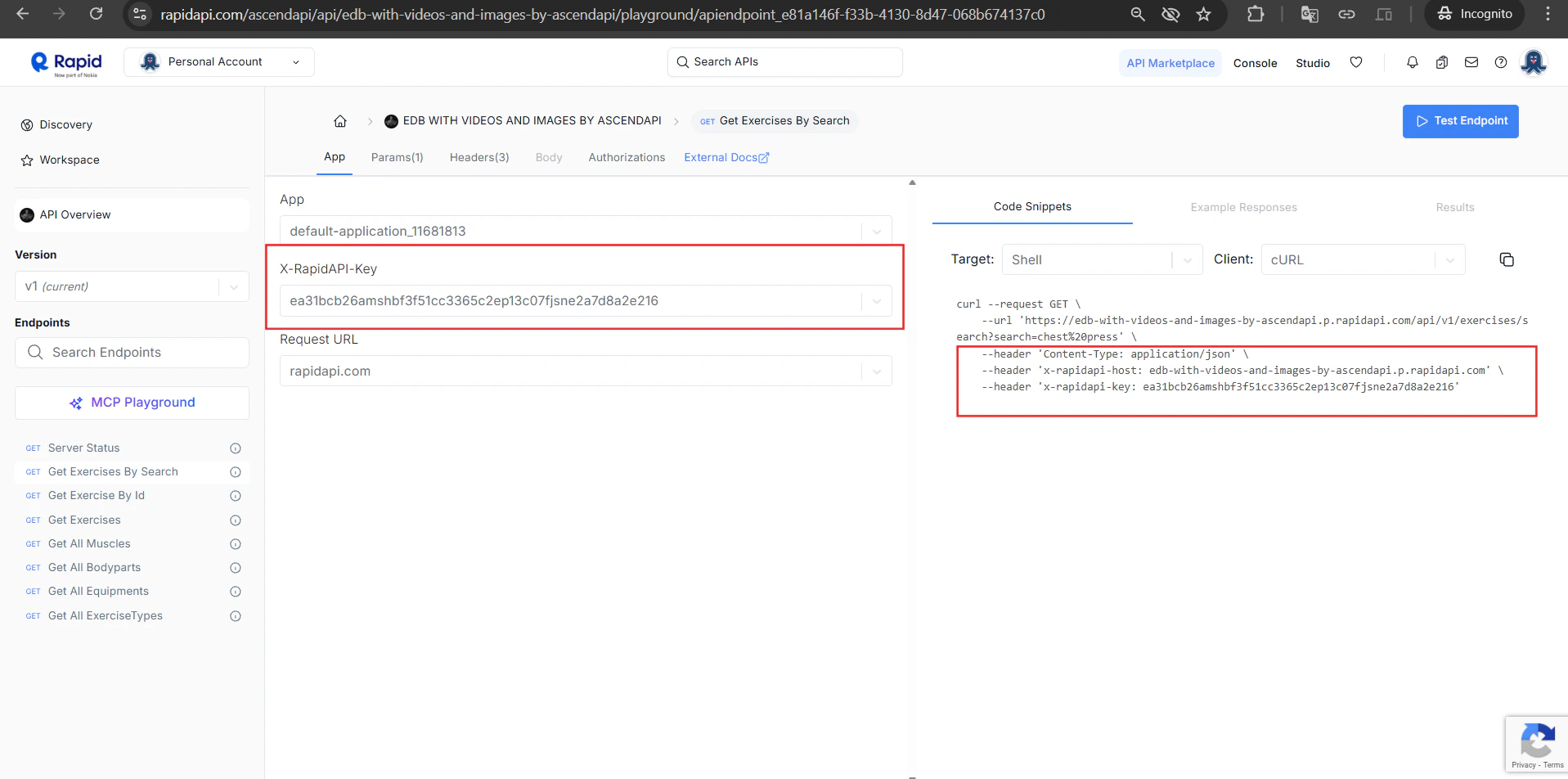
In the API playground, click the “App” tab. You’ll find two critical values:
Copy your
X-RapidAPI-Key — you’ll use this in every request.
Step 5. Test an Endpoint
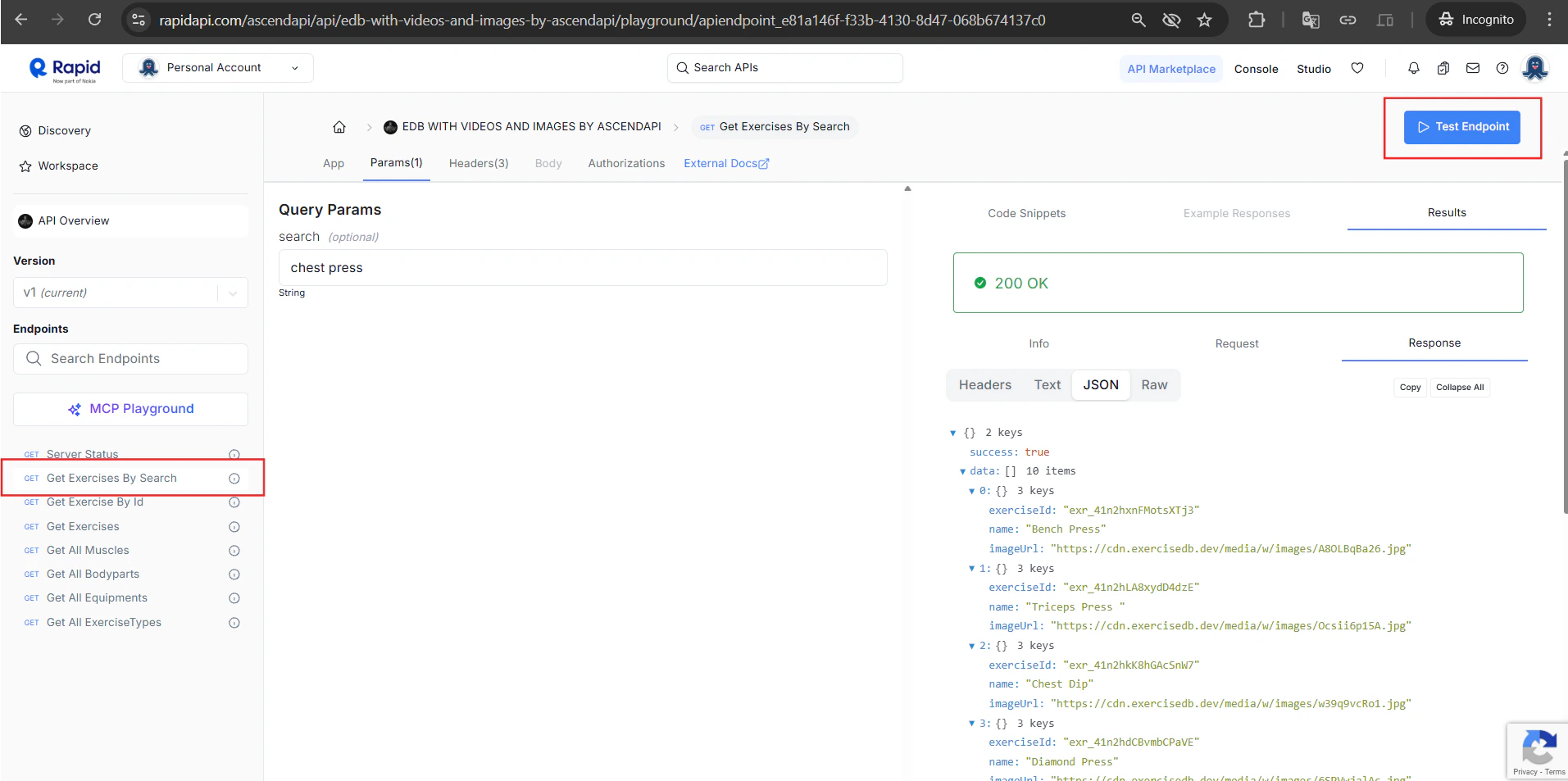
Now select any endpoint from the left sidebar (e.g. “Get Exercises By Search”).- Click the endpoint in the left panel
- Go to the Params tab and enter a search term (e.g.
chest press) - Click “Test Endpoint”
200 OK response with exercise data including exerciseId, name, and imageUrl.
Step 6. Make Your First Request
Use the credentials from Step 4 to call the API from your code.Example Response
What’s Next?
API Reference
Full documentation of every endpoint, parameter, and response shape.
RapidAPI Dashboard
Monitor your usage, track requests, and manage your subscription.